Adding classes
- Click the "Add Class" button in the left panel.
- For manual entry, click the manual entry button in the popup and input your students one by one. Afterward, click "save" to save the completed manual class.
-
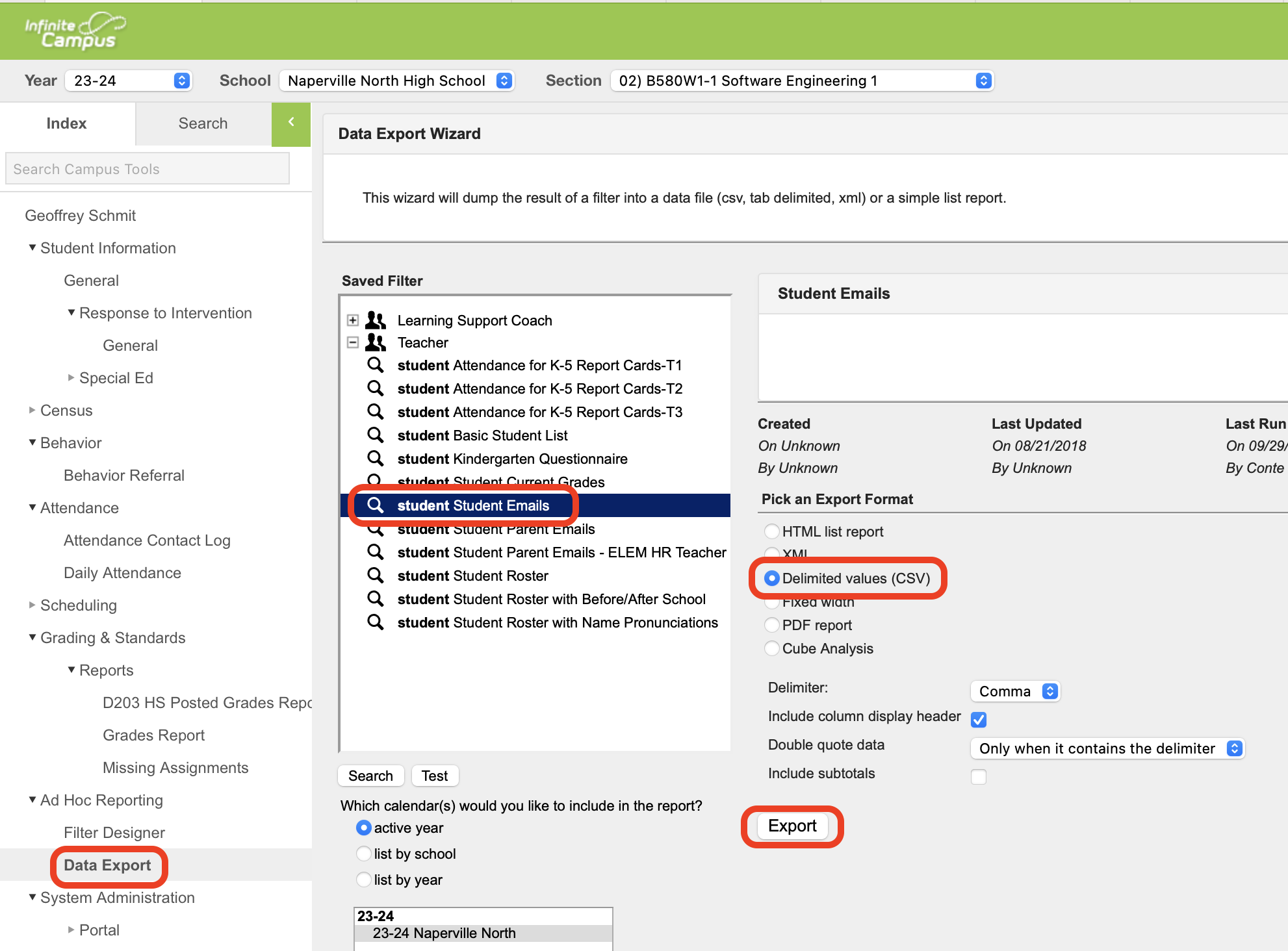
For automatic fill in with a .CSV file, click "Import Class Roster" on the popup. This works with CSV files exported from Infinite Campus:
- To edit classes, select a class from the sidebar and then click the pencil icon, and the manual entry form will pop up, allowing you to change values.
- To delete classes, select a class from the sidebar and then click the trash can icon.
Making basic random groups
- Select the desired class in the sidebar.
- Click "Create grouping"
- In case somebody is absent or otherwise not supposed to be put into a group, like for example if they are a teacher's assistant, click their name on the right sidebar, and then click the red outlined section of that sidebar. This will place them within the exclusion category and exclude them from groupings. Doing the reverse will reverse this exclusion.
- Click the large plus button in the main canvas to add a grouping.
- Click the "Arrange Students" button.
- Select "Random Grouping".
- Input the desired parameters (amount of groups made or people per group).
- Click "Submit"
Setting up preferences and sending out forms
- Click on the desired class in the left sidebar.
- On the right panel, click "Add Question."
- Each question will be added to the automatically generated forms that you can send to your students.
- Select a choice of grouping type.
- Preferred Students
- Unpreferred Students
- Preferred Topic
- Unpreferred Topic
- Input a category for the context for which these preferences are being asked for (ex: group presentation).
- For topic preferences, type in the choices separated by a new line.
- After entering all necessary information, click "add choice".
- If necessary, press the x button to remove a choice.
- Copy the form link to send to your students.
Filling out forms as a student
- Enter your student ID.
- Rank the choices using the dropdown menus.
- Submit the form.